How to make a transparent logo watermark that looks good on any photo
By Abdessamad BettalPublished 3 min read
The short answer
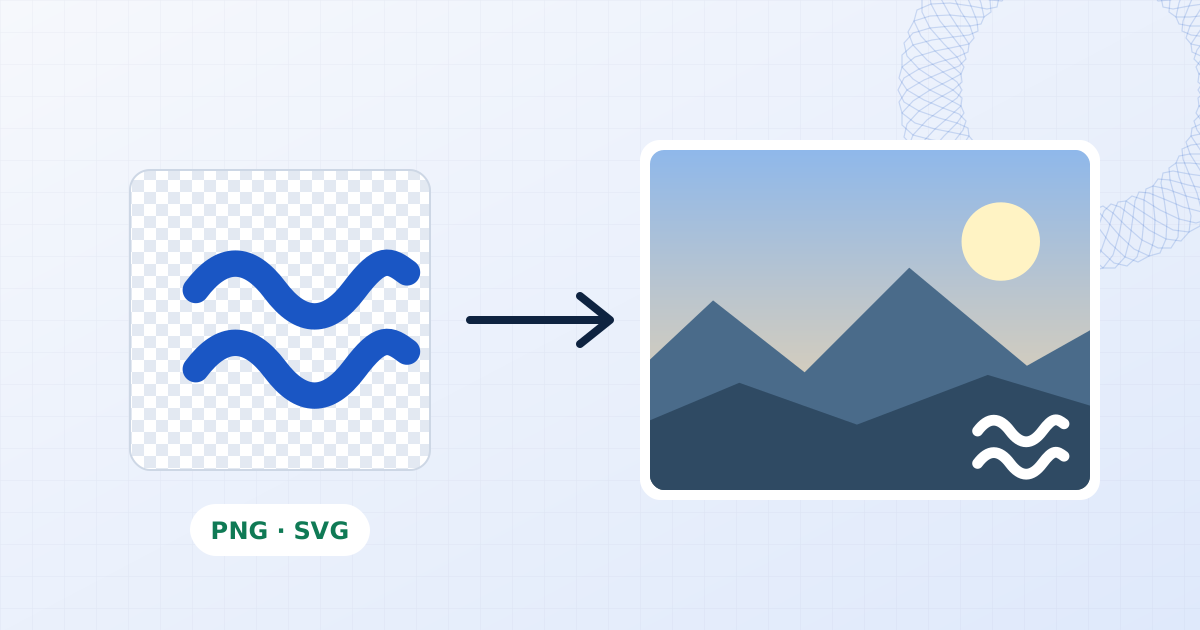
Use a PNG or SVG logo with a transparent background, at least 1000 pixels wide, in a single light colour (usually white) with a soft shadow. A logo with a white background will always print a white box onto your photos, whatever opacity you choose. Keep a dark version for photos with bright corners.
On this page
The most common logo-watermark problem isn't placement or size. It's a white rectangle around the logo, printed onto every photo in the batch. Here's why it happens and how to set up a logo file that looks clean on anything.
Why your logo has a white box
A logo watermark is an image drawn on top of your photo. Wherever the logo file has pixels, those pixels cover the photo. A logo saved with a white background has white pixels everywhere around the mark, and they get drawn too.
Lowering the opacity doesn't fix it. It turns the white box into a faint grey box.
The fix is in the file:
| Format | Transparency | Good for watermarks? |
|---|---|---|
| SVG | Yes | Best. Sharp at any size, small file. |
| PNG (with alpha) | Yes | Excellent, if exported large enough. |
| WebP (with alpha) | Yes | Fine. |
| JPG | No, never | No. Always has a solid background. |
| PDF / AI / EPS | Depends | Not directly. Export to SVG or PNG first. |
✓ yes · ~ partly or it depends · ✕ no
Exporting a transparent logo
From whichever design tool you use, the steps are the same:
- Hide or delete the background layer. In Figma, remove the frame fill; in Illustrator, there's no artboard fill by default; in Photoshop, hide the Background layer; in Canva, use the transparent background option when downloading as PNG (on plans that offer it).
- Export as PNG or SVG, not JPG.
- Export large: at least 1000 pixels wide for PNG. On a 6000-pixel-wide photo, a logo at 15 percent of the width is drawn 900 pixels wide. A 300-pixel logo file scaled up to that will look soft.
- Trim empty space. Extra transparent padding around the logo makes it harder to place precisely, because the margin you set is measured from the edge of the file, not the edge of the ink.
To check the result, drop the PNG into the add logo tool. A transparent logo shows the photo through the gaps; a background will show up as a box immediately.
One colour, not your full-colour brand mark
Full-colour logos are designed for white paper. On a photograph, a navy wordmark vanishes into shadow and a yellow one disappears in sunlight. For watermarks, most brands use a single-colour version of the logo:
- White with a soft shadow works on the large majority of photos. Photographs rarely have pure white corners.
- Black or dark grey for studio white, snow, sky and product shots on white backgrounds.
Make both versions once and save each as a preset. In a batch, use the white one as the shared watermark and switch individual bright photos to the dark one with Adjust this photo only.
Size, opacity and blend
- Size: 12 to 20 percent of the image width for a corner logo. Bigger reads as an advert.
- Opacity: 80 to 100 percent for a crisp brand mark; 40 to 60 percent if it should feel subtle.
- Blend mode: Overlay or Soft light let the photo's texture show through the logo, which looks more integrated than a flat stamp. Screen makes a white logo glow on dark photos; Multiply makes a dark logo sit naturally on light ones.
- Tiled logo: for proofs, switch on Repeat across the whole file, drop opacity to 15 to 25 percent, and rotate about 30 degrees.
Logo plus text
A logo alone doesn't always say where to find you. A common pattern is the logo in one corner and a website or handle as a small text layer beside it. Add both layers, align them, and save the pair as a single preset so they travel together.
Using the same logo on video
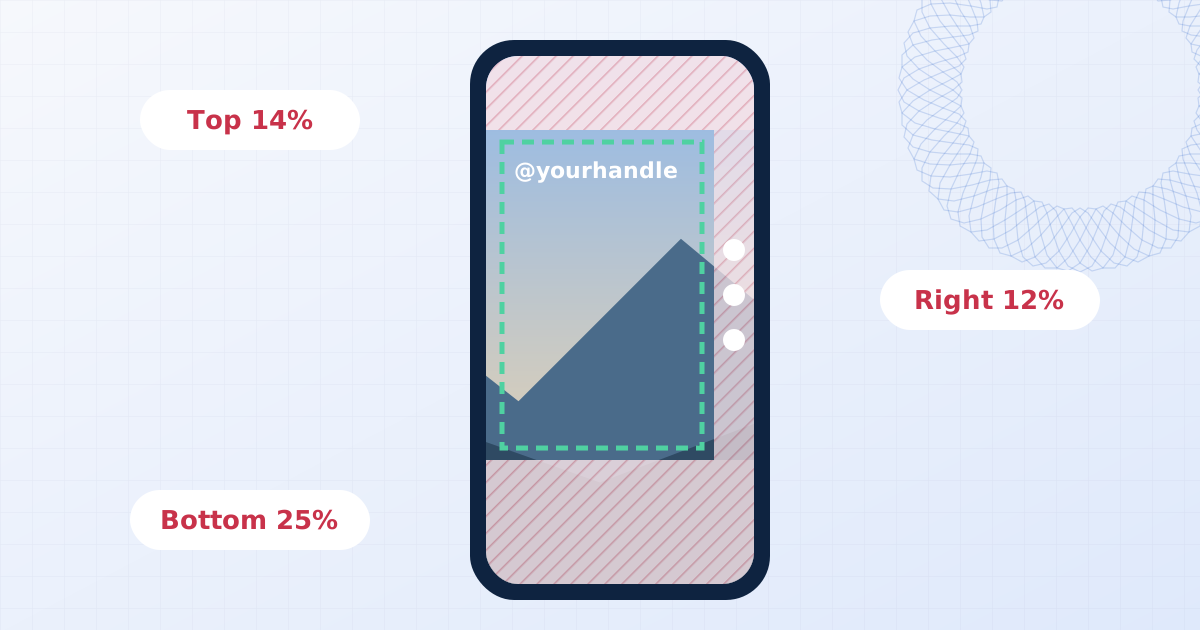
The same transparent PNG works on video. Channel logos usually sit in a top or bottom corner at about 8 to 12 percent of the frame width, at 60 to 80 percent opacity. Check the social safe zones so app buttons don't cover it, then use the add logo to video tool.
Where the logo is stored
Your logo is read by the browser and kept in the browser's local storage as part of your saved watermark, so it's there next time. It's never uploaded. Clearing the site's data in your browser settings removes it.
Frequently asked questions
Why does my logo watermark have a white box around it?
The logo file has a solid white background. JPG files can't store transparency at all, and many PNGs exported from design tools still have a white background layer. Re-export the logo as a PNG or SVG with the background hidden.
What size should a logo file be for watermarking?
At least 1000 pixels wide for a PNG, so it stays sharp on full-resolution photos where it may be drawn several hundred pixels wide. An SVG scales to any size. This tool stores logos at up to 1200 pixels on the long side.
Should a logo watermark be white or black?
White with a soft shadow works on most photos, because photographs are rarely pure white in a corner. Keep a dark version for snow, studio white and bright skies, and switch per photo when needed.
Can I use an SVG logo?
Yes. SVG logos stay sharp at any size and keep their transparency. Make sure the SVG has a width and height or a viewBox, or the browser may draw it at a default size.
Add your logo to photos
Place your logo on one photo or a whole batch. Keeps PNG transparency, with size, opacity, rotation and blend controls. Runs in your browser with no upload.
Add your logo to photos