Remove a logo from a video
Drag a box over a logo that stays in one place, and it is blended into its surroundings on every frame. Preview the result on the playing video before you export.
Drop a video here
Mark the corner logo, channel bug or timestamp and it's blended away on every frame, on your own device.
How to remove a logo from a video
- 1
Open the video
Choose Video above the tool and drop your file.
- 2
Box in the logo
Drag the box over the mark and pull its corner to fit. Add up to four areas.
- 3
Export
Check the preview, then export. The audio is carried over.
What to expect
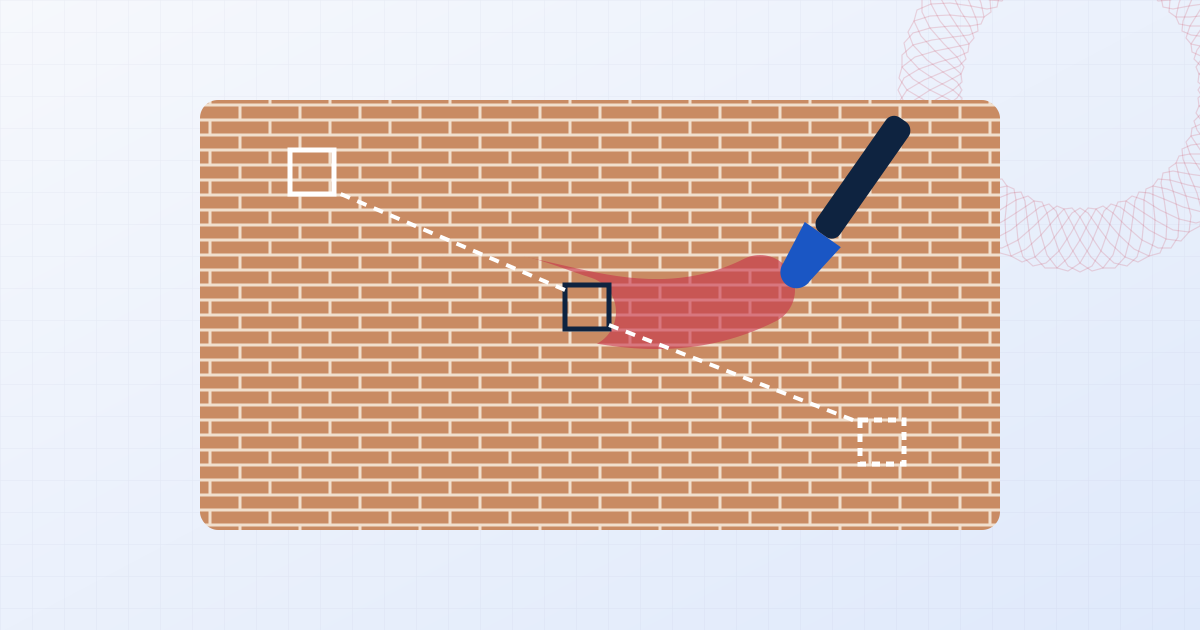
Each frame is repaired by interpolating across the box from the pixels just outside it, the same approach as the delogo filter in professional video tools. Over a plain or softly textured background, such as a sky, a wall or a blurred backdrop, the logo vanishes. Over detailed, moving content you'll see a soft patch where it was.
A tight box gives the best result. Leave a few pixels of margin around the logo, and no more.
What it can't do
The box doesn't follow moving watermarks, such as those that jump between corners. For those, add an area for each position the mark appears in.
Use it on footage you own or are licensed to edit: your own screen recordings, exports from an editor's trial you have since paid for, or a camera's burned-in timestamp.
Questions people ask
Is my video uploaded?
No. The file is opened, edited and saved by your own browser. Nothing is sent to a server, which you can confirm in your browser's network tab while you work.
Can I remove more than one logo?
Yes, up to four areas per video, each with its own position and size.
Will the video be re-encoded?
Yes. Changing the picture requires re-encoding. Use the High or Very high quality setting to keep the loss negligible.
Does it work on moving watermarks?
No. The areas are fixed for the whole clip, so it suits static logos, channel bugs and timestamps.
Learn more
Related tools
- Remove a watermarkBrush over a watermark, logo or date stamp and it is filled in from the surrounding image. Works on photos and on static logos in video, privately in your browser.
- Add your logo to a videoOverlay your logo or channel handle on a video and export MP4 or WebM with audio. Position it on a live preview. Processed on your device, nothing uploaded.
- Remove a watermark from a photoBrush over a watermark, logo or text on a photo and erase it with a content-aware fill. Full-resolution download, undo, and no upload. Works in your browser.
- Add a watermark to a videoPut a text or logo watermark on MP4, MOV, WebM or MKV video in your browser. Live preview, audio kept, export as MP4 or WebM. Your video never leaves your device.