Add your logo to photos
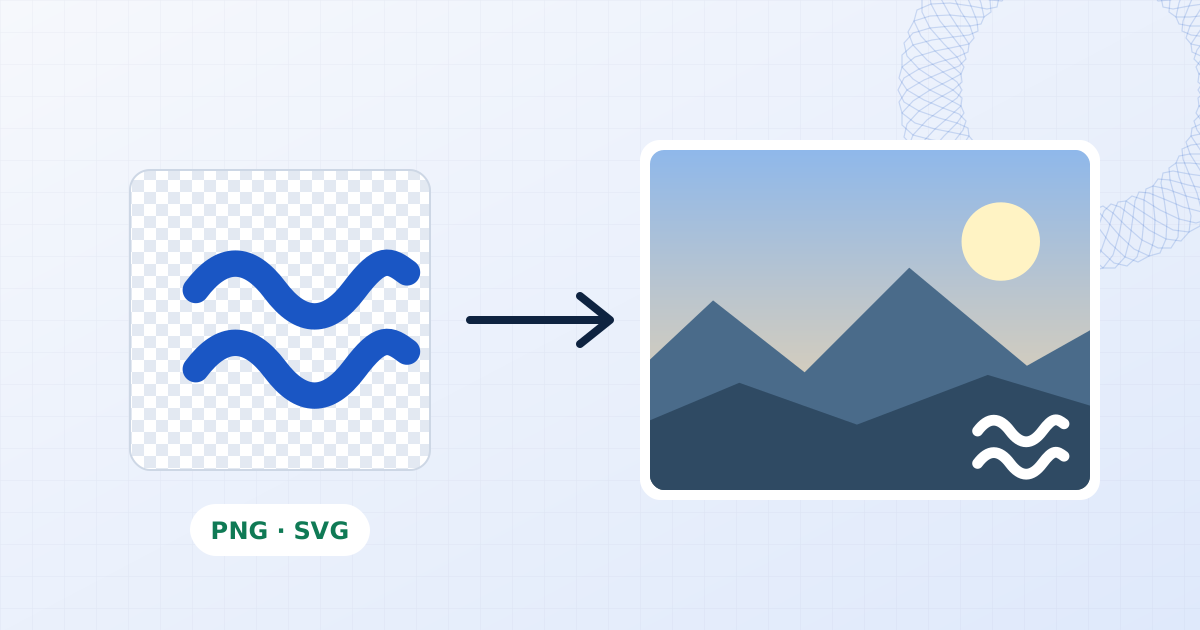
Add your logo as a layer, drag it where it belongs, and apply it to every photo you've loaded. Transparent PNG and SVG logos keep their transparency.
Drop photos here
JPG, PNG, WebP, GIF, AVIF or SVG. Add one or a few hundred; there's no batch limit and nothing is uploaded.
How to add your logo to photos
- 1
Add your photos
Drop the product shots, listings or posts you want to brand.
- 2
Add the logo
Choose "Add logo" and pick your file. Remove the sample text layer if you don't need it.
- 3
Place and export
Drag the logo to a corner, set its size and opacity, then download the batch.
Getting a logo to sit well on a photo
Use a version of your logo with a transparent background. A white box around a logo is the most common reason branded photos look amateurish. If you only have a version on white, the Multiply blend mode hides the white on light photos.
A logo around 12 to 20 percent of the image width, at 70 to 90 percent opacity, in a corner with a small margin, is readable without competing with the subject. For light logos on mixed backgrounds, a white and a dark version saved as two presets covers most cases.
Logo and text together
Layers can be combined: a logo in one corner and a web address in another, or a logo with a line of text beneath it. Each layer has its own position, size and opacity, and the whole arrangement can be saved as a preset.
Questions people ask
What logo formats can I use?
PNG, SVG, WebP and JPG. PNG and SVG with transparency give the cleanest result.
Will my logo look blurry on large photos?
The logo is stored at up to 1,200 pixels on its long side, which stays sharp at typical watermark sizes even on high-resolution photos. For a very large centred logo, start from a large source file or an SVG.
Is the logo saved for next time?
Yes, in this browser. Save it as a preset and it is one click away the next time you open the tool.
Are my photos or logo uploaded?
No. The file is opened, edited and saved by your own browser. Nothing is sent to a server, which you can confirm in your browser's network tab while you work.
Learn more

Related tools
- Add a watermark to photosAdd a text or logo watermark to one photo or hundreds at once. Drag to position, set opacity and rotation, then export JPG, PNG or WebP. Nothing is uploaded.
- Batch watermark photosWatermark hundreds of photos in one go. One mark adapts to every size and orientation, with per-photo tweaks, ZIP download or save-to-folder. Free and private.
- Add your logo to a videoOverlay your logo or channel handle on a video and export MP4 or WebM with audio. Position it on a live preview. Processed on your device, nothing uploaded.
- Watermark real estate listing photosBrand listing photos with your agency logo or website in one batch. Consistent placement on every image, resize for portals, and nothing is uploaded.