How to watermark a video without uploading it anywhere
By Abdessamad BettalUpdated 3 min read

The short answer
Current browsers include WebCodecs, an API that gives a web page access to your device's video decoder and encoder. A watermark tool built on it reads your file from disk, draws the mark on each frame and writes a new file, without the video ever being sent over the network. Speed depends on your device, not your connection.
On this page
Most online video tools are a web page in front of a server. You upload the file, it waits in a queue, a server re-encodes it, and you download the result. For a two-minute phone clip that's tolerable. For a 4 GB screen recording, or a client's unreleased footage, it isn't.
Browsers can now do the whole job locally.
Why upload-based tools are slow
A traditional online video tool has to receive your whole file before it can start. A ten-minute 1080p clip from a phone is often 1 to 2 GB. On a home connection with 20 Mbit/s upload, 1.5 GB takes about ten minutes just to upload, before any processing, and then it has to come back down.
Free plans also cap length or resolution, or add the tool's own logo to the result, because someone pays for the server time. Running the work on your device removes the reason for those limits.
What happens in a local export
- The browser opens the file directly from your disk. Nothing is copied to a server.
- Each frame is decoded by the same hardware decoder your browser uses for normal playback.
- The watermark is drawn onto the frame on a canvas, by the same code that drew the preview you positioned it on.
- The frame goes to the hardware encoder, which writes the new video track.
- Audio is carried across alongside, copied when the output format allows it and re-encoded when it doesn't.
The video watermark tool does this with the WebCodecs API through the open-source mediabunny library. Rotation stored in phone footage is applied before drawing, so the watermark is upright in every player, even ones that ignore the rotation flag.
Choosing export settings
| Setting | Recommended | Why |
|---|---|---|
| Format | MP4 | Plays everywhere, and hardware H.264 encoders are nearly universal. Pick WebM only if your workflow needs it. |
| Quality | High | Very hard to tell apart from the source. Very high mostly makes the file bigger. |
| Resolution | Original | Keeps detail and the watermark sharp. Drop to 1080p or 720p for smaller files or faster exports. |
The tool never upscales: choosing 1080p for a 720p clip keeps it at 720p.
How fast is it?
It depends on your device and codec support. As a rough guide, recent laptops with hardware encoding handle 1080p at around real time or faster: a five-minute clip takes about five minutes or less. Phones are slower and heat up on long exports. 4K is four times the pixels of 1080p and takes roughly four times as long.
Choosing where the mark goes
Scrub through the whole clip before exporting. A corner that's empty in the first shot may hold a face, a caption or a scoreboard in the third. The editor lets you position the mark while the video plays, so check it against both the brightest and darkest scenes.
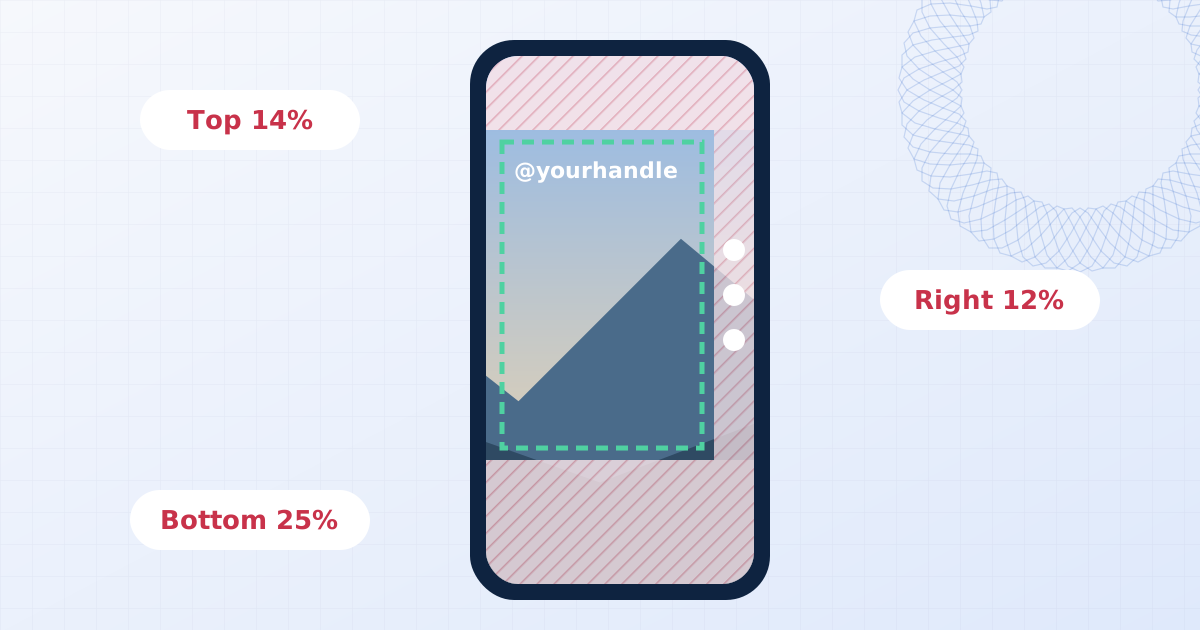
For social formats, avoid the bottom and right edges of vertical video. TikTok, Reels and Shorts cover them with buttons and captions. The social media safe zones guide has the margins.
For review copies sent to a client, a faint tiled mark or a large centred one is more appropriate than a corner logo. The goal there is to make the copy unusable as a final deliverable, not to brand it.
Large files
Videos larger than about 300 MB are written straight to disk in Chrome and Edge, which ask where to save before the export starts. That keeps a long recording from filling the tab's memory. Other browsers build the result in memory, so for very long files, use Chrome or Edge on a desktop, or export at a lower resolution.
Limits to know about
- Keep the tab visible. Browsers throttle background tabs to save battery, which can slow an export dramatically.
- Some codecs can't be decoded everywhere. HEVC (H.265) and ProRes support varies by browser and operating system. If the tool reports that it can't decode a file, convert it to H.264 MP4 first.
- Audio may be dropped if the browser can't encode an audio format for the chosen container. The tool tells you after the export when that happens; switching browsers or output format usually fixes it.
Checking that nothing was uploaded
You don't have to take this on trust. Open your browser's developer tools, go to the Network tab, start an export, and watch: you'll see the page's own scripts and, if you allowed analytics, a few small usage pings to Google Analytics. None of them carries your video, and none is big enough to. Since the video is never uploaded, there's no server copy to delete afterwards.
Frequently asked questions
Can I watermark a video online without uploading it?
Yes. Browser-based tools that use the WebCodecs API decode and re-encode the video on your own device. The page loads once; after that, your file is read from disk and written back to disk without going over the network.
Does adding a watermark reduce video quality?
Any re-encode loses a little information. At a high bitrate and the original resolution the difference is very hard to see. Avoid re-encoding the same file over and over, and always start from the best original you have.
Why is my export slow?
Usually one of three things: the tab is in the background (browsers throttle it), the device has no hardware encoder for the chosen format, or the source uses a codec that has to be decoded in software. Keep the tab visible, try MP4 output, or export at a lower resolution.
Can the watermark be removed afterwards?
It is drawn into the pixels of every frame, so it can't be switched off like a subtitle track. A static corner mark over a plain background can be blurred or patched by a determined editor; a moving or tiled mark is much harder to remove cleanly.
Add a watermark to a video
Put a text or logo watermark on MP4, MOV, WebM or MKV video in your browser. Live preview, audio kept, export as MP4 or WebM. Your video never leaves your device.
Watermark a video